

The product, in depth
The work behind the business, connected.
Operations Hub is an internal management workspace for growing teams. Organise delivery, coordinate projects, manage client relationships and keep company information together. Turn meeting transcripts into reviewable action plans with AI assistance, then assign approved work with clear owners, checklists and acceptance criteria. From day-to-day priorities to company readiness, it gives your business a shared place to work with context and accountability.
01 / The operating picture
Your operations, connected
Running a business involves more than managing a task list. A client conversation becomes an opportunity. An opportunity becomes a project. A meeting changes the priorities. A document contains the detail somebody needs to finish the work. When those pieces live in different places, the team spends time reconstructing the story.
Operations Hub brings these everyday activities into a single internal workspace. It connects delivery, planning, commercial relationships and company information so people can understand both their next action and the wider work around it. Developers, marketing staff, delivery managers and business owners can work in the same system without reducing every job to the same kind of task.
The aim is straightforward: make ownership clearer, keep useful context close to the work and make it easier to follow through on what the team agrees.
02 / Priorities & attention
Start with what needs attention
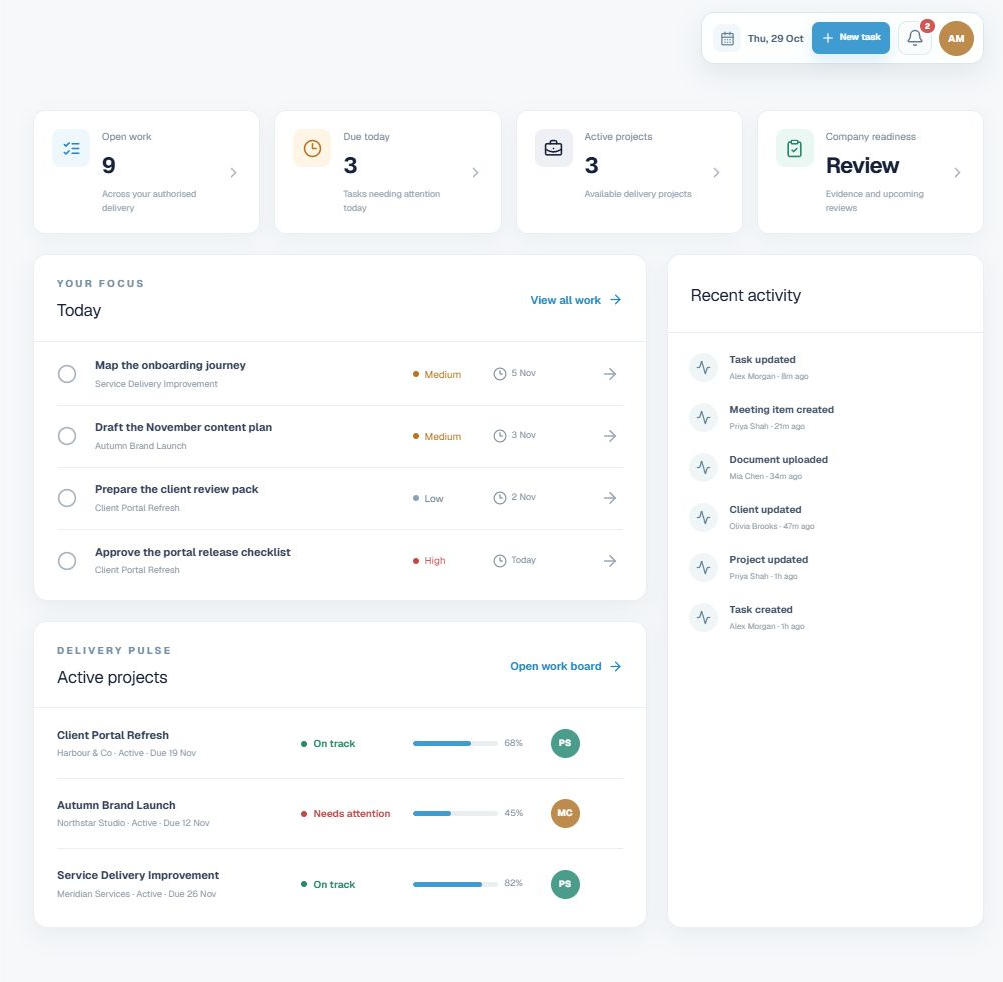
The overview brings current work, due-today priorities, active projects and recent activity into one place. A focused task panel helps people move into the work itself, while the delivery pulse shows project progress and items needing attention.
Instead of starting the day by checking several disconnected lists, your team has a practical entry point into the workspace. Managers can review the delivery picture, and individuals can move quickly towards the actions relevant to them. The information shown respects the access available to the signed-in user.
03 / Managing the work
Manage work in the view that suits the job
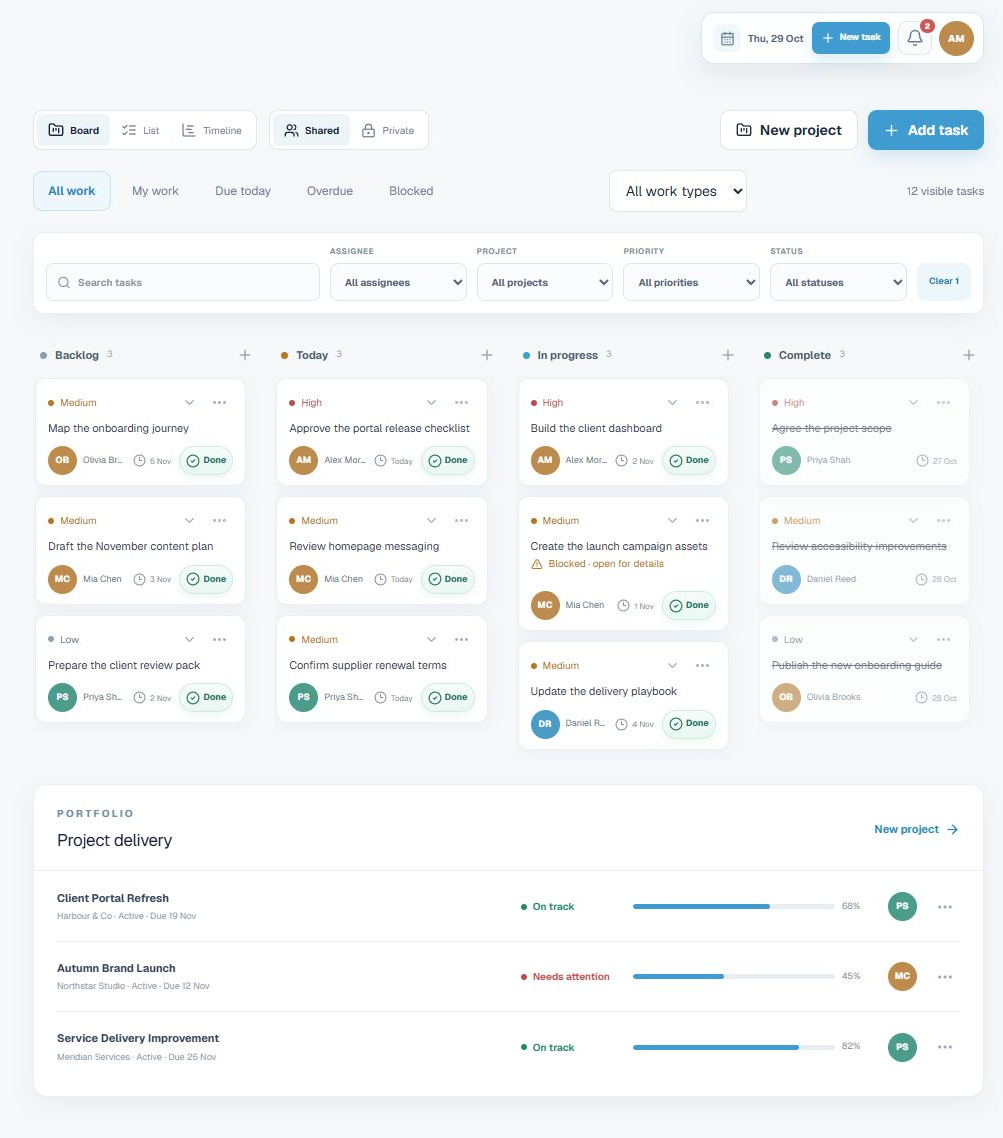
Use the board to follow tasks through Backlog, Today, In progress and Complete. Switch to a list when you need a more structured register, or use the timeline to see dated work in sequence. Filter by assignee, project, priority, status or work type, and use quick views for personal work, due-today tasks, overdue items and blockers.
The work page starts with the signed-in user's assigned tasks, with the option to view all authorised assignees. That gives individuals a useful personal starting point without removing the team's shared view. Compact cards keep busy columns manageable, with more detail available when needed.
For a shared commitment that everyone must complete individually, assign work to Everyone. Each eligible user receives a separate task with independent completion, rather than one shared tick-box standing in for the whole team.
04 / Task workspaces
Give every task a usable brief
A title is often not enough to help someone deliver a good result. Task workspaces bring the description, owner, dates and delivery detail together. Set a work type, add an initial effort estimate, define acceptance criteria and break the work into a checklist.
Record blockers or help needed where the team can act on them. Keep discussion with the task instead of relying on a separate conversation that loses its connection to the work. Link prerequisites to make sequencing visible and help people understand what needs to happen first.
These details support different kinds of work: a developer building a feature, a marketer preparing campaign assets, or an operations colleague improving a handover process. The task becomes a shared understanding of the intended outcome, not simply a reminder that something exists.
05 / Project delivery
Keep projects focused on outcomes
Projects have a dedicated workspace for the brief, milestones, tasks, files and reviews. Describe the audience and intended outcome, record what success looks like and attach useful working links. Keep this context available as delivery progresses, so the team can check the reason for the work as well as its current status.
Plan stakeholder reviews, release gates, campaign launches and other milestones alongside the tasks that support them. The delivery dashboard brings upcoming deadlines, blockers, project progress and team workload into view. Filter by workstream, owner or items needing attention, and save useful filter combinations in your browser for repeat use.
Workload estimates provide planning context rather than pretending to be a complete measure of available capacity. The dashboard helps managers ask better questions: what is waiting, which deadline is approaching and where does the team need support?
06 / The meeting itself
Make meetings lead somewhere
Planner is designed around the meeting itself, not just the calendar entry. Schedule a session, keep its joining link available and capture discussion points or actions while people are speaking. Mark the topic currently being discussed, add notes when they are useful and turn agreed actions into owned work.
The meeting board gives the conversation a visible structure. The diary supports the schedule, while notes, decisions and follow-through remain associated with the relevant meeting date. That makes it easier to return to what was discussed without treating every update as a new assignment.
Whether the meeting happens in person or through an external calling tool, Operations Hub provides a place to organise the discussion and record the work that follows.
07 / Transcript to action
Turn transcripts into reviewable action plans
With AI review configured, import a meeting transcript and produce a draft review of the business discussion. The review can identify agreed actions, separate progress updates from new commitments and surface points that need clarification. Supporting excerpts help the reviewer check where a proposed action came from.
The workflow goes beyond suggesting a task title. Proposed delivery plans can include a work type, an initial effort estimate, checklist steps, acceptance criteria and help needed. These are editable planning suggestions, not additional commitments automatically attributed to the meeting participants.
A person remains in control. Review the evidence, confirm the owner and timing, refine the scope and choose which actions should become tasks. Only approved actions are shared onto the meeting board and Work. Draft reviews remain private to the reviewer and administrators; approval shares the selected actions as tasks, not the entire draft.
This is especially useful for weekly catch-ups where people mix last week's progress, tentative ideas and future commitments in the same conversation. The review gives the team a structured starting point while keeping judgement and accountability with the people who attended.
08 / Commercial relationships
Keep client relationships close to delivery
The client register connects contacts with their businesses, relationship status, account tier, internal owner and next action. Filter by business rather than having to remember an individual contact's name, then narrow the view by owner, status or relationship needs.
See recent contact, upcoming follow-up and associated project or opportunity information together. Log contact as it happens and keep the next step explicit. A team member picking up the relationship can understand what needs attention without piecing it together from memory.
The opportunity pipeline adds commercial context through stages, values, probabilities, expected close dates and accountable owners. Weighted figures offer a planning view of the pipeline; they are not a promise of future revenue. Together, the relationship and opportunity views help the business connect new work with the delivery that follows.
09 / Documents & permissions
Organise documents in a familiar hierarchy
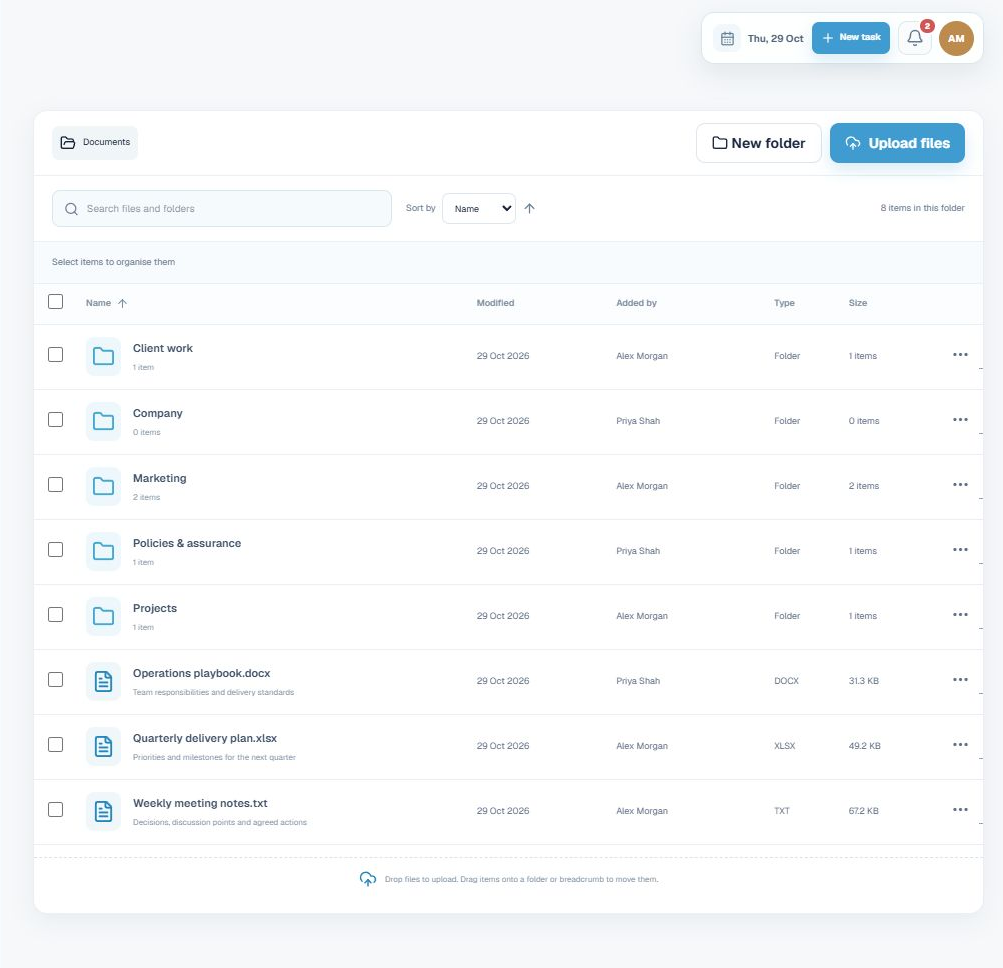
Keep company information in folders and subfolders rather than a flat collection of uploads. Files and folders appear together in a searchable library with names, modified dates, file types, sizes and item actions. Navigate through folders and breadcrumbs, select items to organise them and move existing content to the right location.
Drag files into the library to upload them, or drag existing items onto folders and breadcrumbs to move them. Supported file types can be previewed in the workspace, while downloads remain available when the original file is needed.
Folder and document access can be scoped by role or specific user. Parent-folder restrictions also govern access to what sits inside, helping keep sensitive material within its intended audience. This gives the team a practical structure for client work, project resources, marketing assets and internal guidance.
10 / People & responsibilities
Keep company responsibilities visible
The workspace also brings together a people directory, authorised user administration, supplier information, company readiness and compliance tracking. Relevant notifications help users return to work that needs their attention, while the audit log gives administrators a record of supported company actions.
Readiness and compliance views help organise responsibilities, evidence and review activity. They support the company's own processes; they do not replace professional advice, independent assessment or certification.
Role-based access separates staff, manager and administrator capabilities. Combined with record-level permissions and private-work options, it helps teams share operational information without assuming that every person should see or manage everything.
One workspace for the weekly operating rhythm
Start with the overview, review delivery in Projects, discuss priorities in Planner and turn approved actions into Work. Keep client context in the relationship register and supporting material in Documents. Return to the next meeting with a clearer record of what was agreed, what has moved forward and what still needs help.
Operations Hub gives growing teams a connected place to manage that rhythm. It is built for businesses that need more structure around their work without wanting the structure to become the work itself.